Tags
Tags are labels applied to chats and messages to categorize and organize interactions. For instance, tags can be used to mark messages that require follow-up or to segment participants based on their interactions.
Create tags from Manage Tags in the team sidebar. The link appears only if you have permission to add tags.
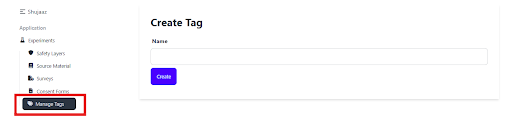
To add a tag, use the Add new button and enter a name. A tag name can be at most 100 characters long.
Types Of Tags
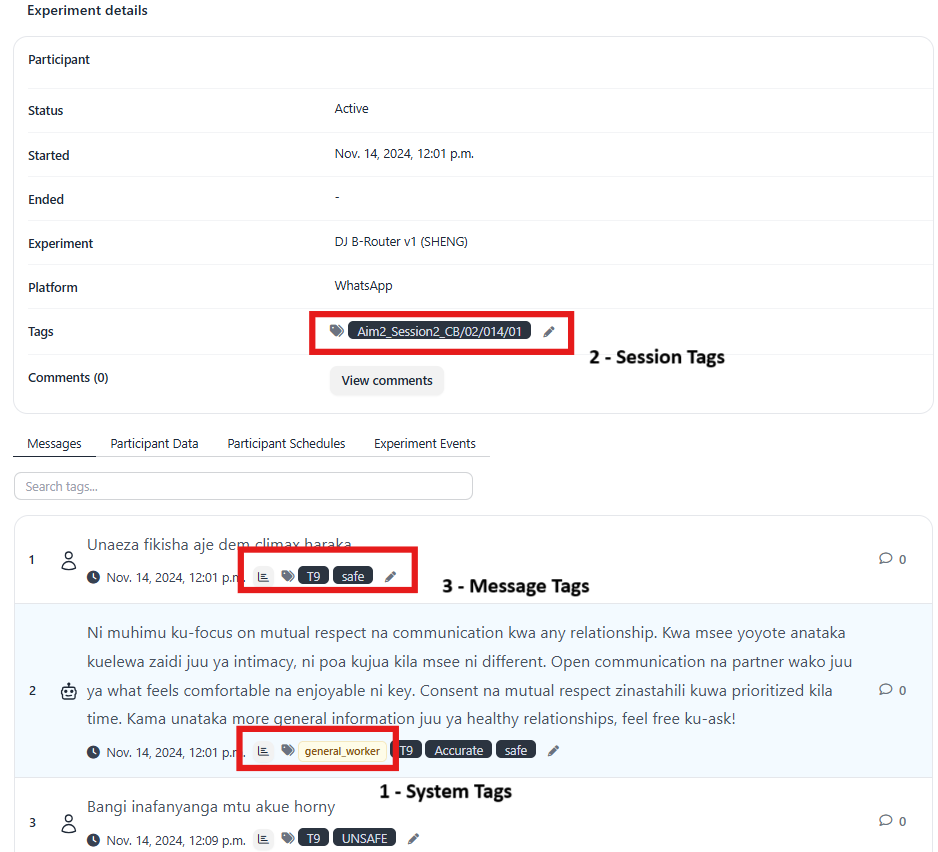
There are three types of tags.
System tags
These are tags generated by the system, such as those used in multi-prompt architectures to differentiate between parent and child chatbots.
Session tags
These tags are added to sessions, either manually, by pipeline nodes, or automatically by tag rules. Tagged sessions can be found with the Tags filter on the sessions list.
Message tags
These tags are added to specific messages within a participant session, either manually, by pipeline nodes, or automatically by tag rules. Pipeline nodes add message tags in these ways:
- The Message Tag field adds a tag to the node's output message. Many nodes have this field, such as the LLM, Render a Template, and Python nodes. Check a node's settings to see whether it has one.
- A router's Tag Output Message setting tags the router's output message. See Route Tagging.
- The Python node's
add_message_tagfunction adds tags from code.
Tags in a Session
Open a session to see its tags and the tags on each message. Session tags appear in the Tags bar at the top. Message tags appear beside each message's timestamp. Hover over a tag to see who added it, for example "Added by Participant". To add tags to a message, click the pencil icon () beside its tags.
To find sessions by tag, see Tags on the Sessions List.